Classy & Affordable Mechanical Keyboard. Logitech G413 SE

This is a gaming keyboard from Logitech G. with essential features for gaming and of course. This is a mechanical keyboard at an affordable price. but even though affordable doesn't mean it has to be cheap, of course not! the body is sturdy, does it have an LCD backlight? Definitely a must, yes. It's not an old-fashioned keyboard of course, and of course, it's not just for gamers.
Okay, let's start the discussion on the keyboard made foreplay on this one. Okay, the Logitech g413 SE keyboard was just introduced at the beginning of 2022. there are two versions there is a version, the Full-Size and there is also a TKL version or a keyboard without Numpad, so it is smaller. Logitech says that the only difference between the two is the absence of the Numpad, Print Screen, Scroll Lock, and Pause Break buttons. While in terms of features and general specifications there is no difference.

Logitech G413 SE Mechanical Gaming Keyboard
Well, the version we are testing is the Full-size version, of course. Let's discuss the specifications first, the dimensions are 435x127x36.3 mm with a weight of 780 Grams. The connection is a Non-Detachable cable, so it can't be pulled out, it uses a USB 2.0 type with a cable length of 1.8 meters. Color, Full Black. The backlight is white LED on each key. The total number of buttons is of course 104, the switch is a Tactile Mechanical Switch. The Actuation Force is 50 Gram Force. Its Actuation Distance is 1.9 mm with a Total Travel Distance of 4 mm. If you see, this switch is brown in color, it is similar to the Brown Switch in general.

This keyboard has a black base color and generally looks simply. But this actually gives the impression of elegance. The body is sturdy because the cross section of this keyboard uses aluminum material, so it's really sturdy. This is important for keyboard durability. Because usually, the keyboard is not bought for 1 or 2 years of use. Generally, it can be longer maybe 4, 5, even more or maybe just bored.

KeyCap, it pulls the keycap using PBT KeyCap, so it has a high resistance to Wear and Heat. So, the buttons should not be easily worn or damaged even if they are used intensively for a long time. These keys at first glance look plain, especially when the keyboard is not turned on or not plugged into a USB. However, when it is turned on, the buttons on the keyboard have their respective key markers. Yes, because the lighting is translucent to the letters here. Regarding the LCD backlight, the color can only be white. It's not RGB, but it's an affordable keyboard so there's no problem, that's natural. The backlight has three brightness levels, which can be adjusted directly by using the Function +F1 or F2 key combination on the keyboard. And if necessary, Backlights can also be turned off.

Logitech G413 SE Mechanical Gaming Keyboard Features White LED Lighting
Interestingly, this backlight can have simple lighting effects, like there are five effects here that can be selected with the Function +F12 key.

In addition, the backlight setting of this function key combination can also be used for several other things. Like multimedia control, device audio volume control can also be. Then there is also the Function key + Windows Key combination that can be used to lock the Windows key. this prevents the windows button from being activated when accidentally pressed while playing a game. yes, this gaming keyboard really is, yes.

Turning to the gaming aspect, which is really gaming, this mechanical switch is the Tactile type used in this keyboard, which is usually liked by gamers because of the feedback that is generated when the button is pressed. This feedback can be sought by gamers because it feels certain, that's how it is. If there is feedback. However, this isn't really audible feedback, so it's not really that noisy either.

Tactile Mechanical Switches Logitech G413 SE
In addition, there is also a 6-Key Rollover feature to enter anti-ghosting performance. This feature ensures that the six buttons can be pressed simultaneously. This is important because it means that the 6button combination can be done simultaneously. But we'll see later, is it really only six buttons?

Then for use, when we try for daily use, we feel that this keyboard does not need an adaptation period, because the Layout Space between the keys is standard, the same as the keyboard in general. It's just that related to the level of this keyboard tilt, we think the standard is enough. But if it's not enough, it still has more legs, so we can make it even more tilted. It's just that, we think if we can go higher, it will be even more fun.

Meanwhile, for the construction of the keyboard, it feels really solid, really. Does not feel easy to move or shift when used. One of them is because of the rubber pads underneath as well. The tactile keyboard is also quite pronounced. This is probably because this switch is relatively a little heavier than if you choose another brown switch.

Now, when it comes to switches, unfortunately, there is only one type of switch. But I think this type of switch will be suitable for gamers and ordinary users alike. So, this seems to be a switch that's for everyone.

6-Key Rollover With Anti-Ghosting Logitech G413 SE Mechanical Gaming Keyboard
okay!! switch to 6-Key Rollover. Here we test this keyboard, can it really be pressed 6 keys at once? but the funny thing is, even when we try to press up to 10 fingers all the keys that are touched can still be recognized properly, without any ghosting symptoms. When the test focused on the W-A-S-D button which is commonly used for gaming, we also did not find any other buttons that were not legible when the four buttons were pressed together continuously. this is funny, at first glance it feels like an NQ Rollover. Yes, the promise is 6-Key, if you get more, it's even better.

Then related to supporting software. Logitech says that there is no software for this keyboard. When we tried it, indeed the Logitech GHub did not detect this one keyboard, right. So, all these keyboard settings must be done from a shortcut on the keyboard. This makes this keyboard user-friendly, plug and play, no need to add more software. Don't worry, just use it. So, I think users in general will feel comfortable with this. Imagine if you move around, maybe from a laptop to a desktop, yes, you don't have to add other software. This is a keyboard that I've just used, I see.

Now for the price for the Full-size version, the official price is $69.99. Meanwhile for the TKL version the price is at $59.99.

Okay, things to note
The first is that there are no switch options other than those available here. So yes, there is no option what color to choose. Only one type here.

Then the next cable, it can't be removed and can't be directed too much, because it comes out from behind. Usually something comes out from the bottom and there is a flow, if not. It's classic, standard here.

Then the legs, although this may be enough for many people, but for those who like to lift a little, those who lift it higher, this feels a bit less lifting. But it's easy to just block it a little, no problem.

Well, what we like about this keyboard is that even though it's called a gaming keyboard and its shape is similar to that of a gaming keyboard, it can actually be used by everyone. Good for gaming, that doesn't mean it's not good for typing. Maybe you need to type long, this keyboard is really good. The backlight is there, and the appearance is also cool. If the backlight is off, it looks full black, really cool. If it is turned on, you can see the buttons are lit. It's so cool that the letters glow like that. We also still have several modes in this backlight lighting. And the backlight is very clear.

Then what's more important, the KeyCap is the PBT type, it's quite rare for the PBT type to be below one million. All of these have used PBT, so you don't need to worry anymore, just use it for a long period of time, it should be steady.

Mechanical Switches And PBT Keycaps Logitech G413 SE Gaming Keyboard
Then the next one, which we are a little confused about, actually says 6-Key Roll over, but when we try it, it feels like there are a lot of buttons that can be pressed here. So, let's assume that if it really happened like that, that's an extra bonus for us.

So, even though the Logitech G413 SE is said to be MadeForPlay, this keyboard is not only comfortable for gamers. This keyboard is definitely comfortable for You, gamers. However, it is also convenient for general needs. Whatever it is, want to type for a long time will be comfortable with this. So, this one keyboard is worthy of consideration for a Mechanical Keyboard if you need a quality keyboard, from a well-known brand at an affordable price.

Logitech G413 SE Specs & Details

Dimensions

  • Length: 17.13 in (435 mm)
  • Width: 5.00 in (127 mm)
  • Height: 1.43 in (36.3 mm)
  • Weight: 27.51 oz (780 g)
  • Cable length: 5.91 ft (1.8 m)

Primary Specifications

  • PBT keycaps
  • Aluminum top case
  • White backlighting

Logitech G413 SE Technical Specifications

Switches: Tactile

  • Actuation distance: 0.07 in (1.9 mm)
  • Actuation force: 1.76 oz (50 g)
  • Total travel distance: 0.16in (4 mm).0 mm
  • Connection Type: USB 2.0
  • USB Protocol: USB 2.0
  • Backlighting: Yes, white per key lighting

Warranty Information

  • 2-Year Limited Hardware Warranty

Part Number

  • 920-010433

Logitech G413 SE System Requirements

Requirements

  • USB 2.0 port

Platform Compatibility

  • Windows® 10 or later
  • macOS® X 10.14 or later

In the Box

  • G413 SE Mechanical Gaming Keyboard
  • User Documentation
    Read more...

    5 Best Laptops For Music Production In 2022

    Focused on the 5 best laptops for music production. For most of us a laptop in 2022 the size to performance ratio these devices have, has never been this good for music production and mixing specifically. The speaks from ram to storage to these new M1 Pro Chips, I mean even preferred desktop users a restarting to consider the switch. But I know, Mac Computers aren't for everyone and even though they are fantastic for music production. There are quite a few windows laptops out there ready to compete. Today we're going to have a look at a few laptops I deem perfect for music production and mixing tasks.

    So, when it comes to picking a laptop for music production and mixing, the key specs you want to focus on is RAM, Storage and Processing power. RAM is important as it allows for your computer to transition quickly between tasks, speed up response time file conversion mix down, and allows for more recording and midi tracks. Without sufficien’t RAM, you may experience crashing, freezing, and multiple unnecessary errors.
    5 Best Laptop For Music Production 2022
    Best Laptop For Music Production 2022
    Even though I believe you should always be working off an External Hard Drive, internal storage is also very important virtual instruments and sample libraries take up a lot of space. And in most cases, these will be stored on your laptop. Compared to a Hard Disk Drive, SSD storage is also the better way to go as it's quieter due to its faster properties reducing recording latency. And your CPU Processor is the defining component. Choosing the right CPU can speed up your workflow a lot tasks, like generating synthesizer sounds and effects like reverb and delay, are very heavy tasks for a processor.

    So, whichever laptop or computer you end up getting these three specs (RAM, Storage, Processor) are top priority. Now, most laptops on today's list are pretty expensive. But I want to remind you guys, that there are a few great second-hand laptops out there especially if you're on a tight budget and you still want good specs. I know there is a lot of risk when buying second hand and it's not necessarily for everyone. So maybe we should move on to a few more recent models.

    5 Best Laptops For Music Production

    1. MSI Katana GF66

    The first laptop we're going to have a look at that's great for music production is the MSI Katana GF66 costing around thirteen hundred dollars. This gaming designed laptop offers great performance with an i7 Processor, 16 gigabytes of RAM, and 1 terabyte of SSD Storage.
    MSI GF66 Gaming Laptop, great option for music production
    MSI GF66 Gaming Laptop, great option for music production
    In terms of build quality, the Katana GF66 does have an all-plastic design, that might feel a little cheap. With as light flex on the screen and keyboard. The size is not too big or too small for music production. Coming with a 15.6-inch screen. When it comes to the ports for your midi keyboard and audio interface. The Katana GF66 offers three USB-A and one USB-C connections, including an HDMI and ethernet input. In terms of look specs and price, the MSI Katana GF66 is definitely a great option for music production.

    2. Apple MacBook Pro 14 Inch with Apple M1 Pro Chip

    Since apple is at the forefront of technology most of the time. There's no surprise that their new M1 Pro laptops have made the list. Starting at two thousand dollars for the MacBook M1 Pro 14 inch and 2500 for the M1 pro 16 inches. These new MacBook’s offer great processing power with the M1 Pro Chip. On the 14-inch model, RAM starts at 16 gigabytes with 512 gigabytes of SSD storage. Which is already good for music production? These specs are upgradable though offering a maximum of 32 gigabytes of RAM and a total of 8 terabytes of SSD storage. 
    Apple MacBook  M1 Pro, Apple M1 Pro chip with 8‑core CPU and 14‑core GPU
    Apple MacBook  M1 Pro, Apple M1 Pro chip with 8‑core CPU and 14‑core GPU
    If you have 8 terabytes of storage on a laptop, this size you can get rid of these. Regarding connections for your audio interface and midi keyboard unfortunately, these powerful machines only offer USB-C ports, most midi keyboards, and USB audio interfaces still connect with USB-A connections. So, an external USB Hub will be needed for these music making tools. Unlike the previous MacBook’s, these new MacBook M1 Pro’s do include an HDMI port. So, if the 14 inches screen is too small for you, an external monitor is a great alternative. I actually, recently bought myself a 14-inch M1 Pro and for music production, it's absolutely fantastic switching back to pc for a second.

    3. ASUS VIVOBOOK PRO X16

    The next laptop worth having a look at is the ASUS VIVOBOOK PRO X16. Costing around 1700 dollars. This laptop offers 32 gigabytes of RAM an Amd Ryzen 9 processor and 1 terabyte of SSD storage.
    ASUS VIVOBOOK PRO X16 4K Display OLED
    ASUS VIVOBOOK PRO X16 4K Display OLED
    ASUS VIVOBOOK PRO X16 Laptop is offered in both a black and white color. Coming in a full aluminium body with minimal screen and keyboard flex. The 4k display is offered in a 16-inch size, which is perfect for those of you not using an external monitor. In terms of connections, the VIVOBOOK PRO X16 offers three USB-A and one USB-C ports an SD Card Reader and HDMI for an external display. When looking at the size, Specs, and Screen of this laptop, for music production it's definitely a good pick.

    4. Alienware X14 Gaming Laptop From DELL

    Another great Gaming Laptop with perfect specs for music production tasks, are the Alienware X14 Gaming Laptop from DELL. Costing around sixteen hundred dollars. This laptop comes with 16 gigabytes of RAM, a 12th generation intel core i7 Processor, and 512 gigabytes of SSD storage. This laptop is also upgradable. Costing a total of 2200 when fully specs out.
    Alienware X14 Gaming Laptop From DELL
    Alienware X14 Gaming Laptop From DELL
    In terms of look and design, I think, Alienware X14 Gaming Laptop looks awesome. The all-white design, with the light blue accents. Looks really clean mixed with the charcoal gray keypad. All the ports are on the back, including 3 USB-C ports, 1 USB-A, port Micro-SD card reader, and HDMI port for an external display. If you're looking for a laptop that is going to stand out, the Alienware X14 from DELL will do just fine.

    5. Apple MacBook Pro 16 Inch With M1 Pro MAX Chip

    Now the final laptop that is probably the best for music production in 2022 is the 16-inch MacBook M1 Pro MAX. Costing around three and a half thousand dollars.
    Apple MacBook Pro 16 Inch With M1 Pro MAX Chip
    Apple MacBook Pro 16 Inch With M1 Pro MAX Chip
    The MacBook M1 Pro MAX comes with 32 giga of RAM, one terabyte of SSD storage, and the M1 Pro MAX Processor. These specs can be upgraded to 64 gigabytes of RAM and 8 terabytes of SSD storage making this laptop super powerful. But, also crazy expensive. like I mentioned with the M1 Pro 14, the build of these laptops is super solid. And the biggest 16-inch screen also helps if you aren't using an external monitor. The ports are also very similar to the M1 Pro 14, with an HDMI port and three USB-C ports. So again, make sure you have a USB-C Hub for these. In terms of power, size, and build, no laptop has been able to compete yet.

    So, that brings this article to an end focused on the five best laptops for music production. that you can get for music production in 2022. Thank you guys so much for your stay and I will see you for another one next time.
    Read more...

    Acer Aspire 7 A715-42G. Short Review and Gaming Test

    Acer Aspire 7 A715-42G with AMD Ryzen 5000 Series, this is a laptop that may be a laptop that many people need. Yes, many people are looking for a laptop with high performance, Fast CPU, Fast GPU, but not looking for a gaming laptop. This one looks ordinary, but its performance is not to be outdone by a Gaming Laptop. Maybe, this one laptop is more appropriate if we call it a Hight Performance Laptop. For those of you who are still in college and confused about finding a laptop, maybe this is actually what you are looking for if you are looking for a high-performance laptop.

    Let's discuss!!

    Starting from the Acer Aspire 7 A715-42G processor

    Acer Aspire 7 (A715-42G) uses AMD ryzen 5 5500U Code name is Lucienne, the architecture is Zen 2, 7 nanometer of course. 

    Acer Aspire 7 (A715-42G) Free OS Win11 and Office 2021 Home & Student
    Acer Aspire 7 (A715-42G) Free OS Win11 and Office 2021 Home & Student

    TDP, it says 15 watts. But, that doesn't mean he isn't tight. 6-core 12 threads, this high number of cores and threads can provide performance equivalent to processors on desktops or processors for gaming laptops, but the TDP is only 15 watts. So, fast but efficient. The base clock is 2.1 GHz with a maximum boost clock of up to 4.0 GHz and the total L3 Cache is 8 MB.

    Acer Aspire 7 (A715-42G)  AMD Ryzen 5 5000 U Laptop Processor
    Acer Aspire 7 (A715-42G)  AMD Ryzen 5 5000 U Laptop Processor

    Acer Aspire 7 A715-42G integrated graphics

    The Aspire 7 uses AMD Radeon graphics with 7 graphics Core Count. 448 shader units.

    Acer Aspire 7 A715-42G RAM

    Acer Aspire 7 (A715-42G) ,16GB Dual Channel RAM
    Acer Aspire 7 (A715-42G) ,16GB Dual Channel RAM

    This Aspire 7 A715-42G uses 16 GB DDR4 PC3200 Mhz dual channel RAM. So it's dual-channel, and already 16 Giga, no need to bother upgrading anymore. But if you want to upgrade, you can still upgrade it up to 32GB dual-channel.

    Acer Aspire 7 A715-42G storage

    Acer Aspire 7 (A715-42G)  Storage, 512 GB PCI NVME SSD
    Acer Aspire 7 (A715-42G)  Storage, 512 GB PCI NVME SSD

    Acer Aspire 7 A715-42G is ready to use 512 GB PCI NVME SSD, here there are no additional Sata and M.2 slots, so for upgrading we have to change the default storage, but 512 Giga is quite large.

    Aspire 7  GPU Use

    Acer Aspire 7 uses a GeForce rtx 3050 Laptop GPU. Maximum Power Limit is at 60watt, and VRam is at 4GB GDDR6 2048 CUDA Cores, then Feature-Resizeable BAR is already active on this laptop.

    Wireless Connectivity On Acer Aspire 7 A715-42G

    He uses MediaTek Wi-Fi, this is already Wi-Fi six. Already Support Multi User MIMO and Bluetooth version 5.

    Aspire 7 A715-42G Battery

    The battery capacity is 48 Wh 

    Acer Aspire 7 (A715-42G) OS Include

    For this Laptop, OS directly uses Windows 11 Home. And also free MS. Office Home & Student 2021

    Acer Aspire 7 A715-42G Body

    The shape is a clamshell or classic laptop. The material is polycarbonate. The design is simple, minimalist, and in our opinion tends to look professional and serious, not at all reflecting a gaming laptop. He looks similar to the rest of the Aspire series. There is an Acer logo on the back of the screen, and there is an Aspire identity logo that looks faint on the hinge.

    Acer Aspire 7 (A715-42G) Body Material
    Acer Aspire 7 (A715-42G) Body Material

    For color, this name is Charcoal Black. Although it's more like a dark gray. The dimensions are 363 cm long and 25.4 cm wide, with a thickness of 2.29 cm.

    For the laptop it self, it weighs at 2.1 Kg, while the charger is at 386 Grams. So, the total weight is around 2.49 Kg.

    Acer Aspire 7 A715-42G Display

    Aspire 7 uses an IPS panel and it is large, at 15.6 inches. So for those of you who need a large screen, this might be perfect. The resolution is full HD 1920x1080 Pixels and the Refresh Rate is 60Hz. Obviously, this is not a gaming laptop. There is no official info regarding the Coverage Gamut from acer, but based on testing, the Coverage Gamut is in the 57.7 percent sRGB range and the volume is at 57.9 percent sRGB with Brightness at 175 Nits. It's not really the best screen we've come across.

    Acer Aspire 7 (A715-42G) Screen Panel
    Acer Aspire 7 (A715-42G) Screen Panel

    And if for example you use it for Content Creation, we recommend using an external monitor that is more capable. However, by looking at the price, we don't complain much about the quality of the screen, because the screen is already spacious. This screen also uses an anti-glare coating, so it is comfortable to use. Not a lot of annoying light reflections.

    Acer Aspire 7 display also use Full-Nerrow Display. The right and left frames are already relatively thin, 81.61 Screen to Body Ratio. The top frame is still a little thick, because there's a 720p-30FPS camera in there.

    Acer Aspire 7 A715-42G Audio

    For audio, the Acer Aspire 7 uses dual stereo speakers, located at the bottom right and left of the laptop. As for the sound quality, it seems that it still can't be relied on to be enjoyed. But at least there are still speakers here.

    Acer Aspire 7 A715-42G Connector

    On the left there are:

    Acer Aspire 7 (A715-42G) Left Side
    Acer Aspire 7 (A715-42G) Left Side

    1 kensington lock, there is 1 ethernet port, 1 HDMI, there is one USB 3.2 Gen 1 Type-C (5 Gbps), and there are two USB 3.2 Gen 1 which is 5gbps.

    On the right hand side:

    Acer Aspire 7 (A715-42G) Right Side
    Acer Aspire 7 (A715-42G) Right Side

    There is one Audio Jack Combo 3.5 mm, there is one USB 2.0, and one DC In port for the charger.

    Acer Aspire 7 A715-42G Keyboard

    For the keyboard, the layout is typical of the Acer Aspire. There is a Numpad button on the right, so it's perfect for those of you who often need the Numpad button. For the power button, it blends with the keyboard layout, its position is at the top right corner. For backlight, this is white backlight with one brightness level. So, it can only be on or off.

    For the touchpad, the size is quite wide. Located center to spacebar, this is fun. So if you type it won't bother you. Of course, this Touchpad already supports the Windows Precision Driver feature.

    Acer Aspire 7 A715-42G Cooling System

    Acer Aspire 7 (A715-42G) Cooling System
    Acer Aspire 7 (A715-42G) Cooling System

    For the cooling system, it has two fun and two Heat Pipes and a heat sink that covers the CPU and GPU areas. The intake is from below, the exhaust is towards the back right of the laptop.

    Acer Aspire 7 A715-42G Performance Mode

    There are three performance settings that can be changed with the function key + the letter F (Fn + F).
    • Silent
    • Normal
    • Performance

    Let's see the consistency of its performance with cinebench R15, 20 times Loop. We don't see any difference in Normal Mode or Performance mode, both of which have a maximum score of around 1367 points, this includes a high score. As for Consistency Performance, both modes are also able to maintain scores in the range of 1300 points. Again, it is stable and there are very few throttling symptoms. and the point make it present like a gaming laptop. 

    For working temperature, In the first Run to the fourth Run, the temperature is in the range of 75-80 degrees Celsius. Entering the next run, the temperature dropped to 64-69 degrees Celsius. If this is not the temperature of a gaming laptop, it is very cold.

    OK, let's jump right into Acer Aspire 7 A715-42G Blender's testing

    Blender 3.01-BMW27

    Scence, CPU rendering, all done in 4 minutes 38 seconds. GPU rendering 49 seconds. Fast, hehehe!! Then for the working temperature, when the temperature is working with horse acceleration, we see that the CPU temperature is in the range of 70-75 degrees Celsius and the GPU temperature is in the range of 63-66 degrees Celsius. again, this is by no means a worrying temperature.

    Let's move on to Adobe Premiere Pro cc 2022.

    The 4K60 rendering test, Software only completed in 19 minutes 35 seconds. Of course you will not use this setting. But, if we use horse acceleration, everything is finished in 2 minutes 30 seconds. This is great for a 4K60 video that is 2 minutes and seven seconds long.

    Okay, how about for 1080P?. For software only, it's done in five minutes 29 seconds, but if we use the horse's acceleration, it's done in one minute 15 seconds. So, be tight!!.

    Then what about the working temperature? The CPU temperature is in the range of 78-85 degrees Celsius, while the GPU is in the 60-65 degree Celsius range. Safe, no problem.

    OK, let's go to Davinci Resolve 17.2, a free video editing software.

    4K60 video rendering with a duration of 2 minutes 7 seconds completed in five minutes 58 seconds. Meanwhile, if the quality is 1080 60FPS, rendering is complete in one minute 49 seconds. Wow, Fast!!. Then for the working temperature, when rendering 4K60, the CPU temperature is only in the range of 75 to 82 degrees Celsius and the GPU is still at 63-66 degrees Celsius.

    we move on to Acer Aspire 7 A715-42G gaming testing

    Let's start with 3DMARK first

    3DMARK Files Strike directX 11, Graphics score is at 11499, while 3DMARK Time Spy DirectX 12 graphics scores at 4402. As for the working temperature, when we use the Fire Strike-Stress Test, the GPU is only in the 60-65 degree Celsius range.

    Next we head to gaming testing

    This is not a gaming laptop, but we can test the game, please.

    Okay, the first one, CSGO

    1080p resolution, Low setting gets 140-180 FPs

    DOTA 2

    1080p, fastest, Ccreen Render 100%, get 75-90 FPS. still solid.

    Then Shadow Of The Tomb Raider

    1080P, Haigh, Ray Tracing Medium, we can still get 55 to 60 FPS.

    Death Stranding

    1080P, Very High, DLSS quality, still 70-90 FPS.

    Then the game Assassin's Creed Valhalla

    FHD 1080P, Medium, getting 50-65 FPS. When playing this game for 30 minutes, we see that the CPU temperature is at 69-72 degrees Celsius, the GPU is at 64-66 degrees Celsius, and for the surface temperature, almost the entire keyboard area is below 38 degrees Celsius, while the keyboard area is below 38 degrees Celsius. the hottest areas occur in the Middle and Upper Middle which reach temperatures of 40 to 41 degrees Celsius. if in the Pamrest area the temperature is below 30 degrees Celsius.

    Acer Aspire 7 A715-42G Storage Test

    Okay, now we move on to Storage test. The read speed is 3019 MBPS and the write speed is 1652 MBPS. Wow!!, the reading speed is at 3000, which means it's quite fast.

    Acer Aspire 7 A715-42G Battery testing

    We set Performance in Normal Mode, Brightness 50%, Volume 25% we play Video Playback with 1080P resolution, it can last up to 8 hours 45 minutes or almost 9 hours. This is a decent duration, where the battery is only 48 Wh capacity and the screen is 15.6 inches. How about the

    charge?, the first 30 minutes it's already 50%, this is amazing. While charging from zero to 100% only takes about 100 minutes or one hour and forty minutes.

    Acer Aspire 7 A715-42G price

    Certainly not too expensive, the price is in the range of 13 million, and this includes Windows 11 Home and Microsoft Office Home & Student 2021 which are active forever on this laptop.

    Acer Aspire 7 A715-42G Warranty

    It is provided with a 3 year warranty. The warranty provided is one year for spare parts and three years for service. 

    Things to note!

    • The first screen It's not 100% sRGB even though it's an IPS screen. So, for those of you who need this laptop for Content Creation, if for example you need high color accuracy, this laptop is not very suitable. You can use an external display. However, if you are doing video editing for a hobby or just for fun, there should be no problem, because it uses an IPS screen and the consistency is still pretty good.
    • Then there is no expansion slot for additional storage, be it for M.2 or sata. So we have to change the default storage if we want to upgrade.

    Interesting Side From Acer Aspire 7 A715-42G

    • This laptop has a high performance but minimalist design. This is probably what you are looking for. because maybe for students it's a bit difficult if you want a fast laptop but you get a Gaming Laptop. This laptop is perfect for college, and for other jobs that require high performance but don't want to look like a gaming laptop.
    • Then, he uses an AMD Ryzen 5 5500u processor with 6 cores-12 threads whose performance can match the performance of a desktop PC. Even though its TDP is only 15 Watts, and obviously, it has high efficiency. The power consumption is definitely low.
    • Then, this laptop is comfortable for multitasking activities with a large number of cores and threads.
    • Then he has an RTX 3050 Laptop GPU. It's perfect for content creators and even gaming is comfortable. Still able to bulldoze some Triple A games in full-hd resolution.
    • The RAM is quite large, which is 16 Giga and has dual channels. Ready to use, no need to bother upgrading. The 512 Giga SSD PCI MVME storage is quite spacious and quite fast.
    • The connectors are also quite complete.Already have wi-fi six.
    • The working temperature is low.
    • There is a bonus office Home and Student 2001.
    • And the warranty is also quite long.

    Judging from its performance, it's not wrong if the message is "power your voice: Create Unlimited Creativity with the Really Fast AMD Ryzen 5000U Mobile Processor". Because Acer Aspire 7 A715-42G is really fast, and what is no less important is its appearance. Even though he's tight he's still low profile.

    Read more...

    Easy Ways to Turn Off Hard Disk Drive When Idle In Windows 10, With 5 Easy Steps

    Why do we turn off our PC / Laptop Hard Disk?, this aims to save electricity or battery consumption. 
    For you Windows 10 users, you can take advantage of the settings in Power Options to turn off the hard disk when there is no activity for a certain period of time.
    This option is known as Turn Off Hard Disk after is a part of the power management choices of the current power plan. The user can control it, turn on or turn off it. It depends on the required power plan, it can be turned on or turn off out of the box. For instance, it is turned on in the Balanced and Power Saver power profiles, and turned off in the Performance power plan. So, do you need this feature?

    Here are 5 easy steps to turn off the Hard Disk Drive when Idle in Windows 10

    1. Open Windows Run (Win Key + R key), then type powercfg.cpl
    Open Windows Run (Win Key + R key)
    Open Windows Run (Win Key + R key)
    Open Windows Run (Win Key + R key), then type powercfg.cpl
    Open Windows Run (Win Key + R key), then type powercfg.cpl
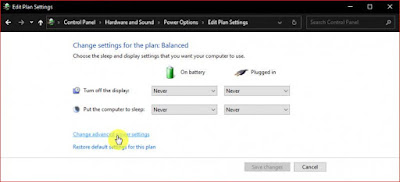
    2. Click the Change plan settings option, adjust to the power plan that will be used
    Click the Change plan settings option, adjust to the power plan that will be used
    Click the Change plan settings option, adjust to the power plan that will be used
    3. Click on the option Change advanced power settings
    Click on the option Change advanced power settings
    Click on the option Change advanced power settings
    4. Open the Hard disk menu, then you will find settings to set how long the hard disk will turn off after a few minutes without read / write (idle) activity. You can set when the device is connected (Plugged in) or not connected to an electric current (On battery). Click OK to save the settings
    settings to set how long the hard disk will turn off
    settings to set how long the hard disk will turn off
    5. Done

    When the activity on the hard disk drive stops, there will be a delay of several seconds before the disk rotation on the hard disk drive will move again. However, you should also note that this feature will not work on Solid State Drives (SSD) or Non-Volatile Memory Express (NVMe).

    That's an easy way to turn off the Hard Disk Drive when Idle in Windows 10. Hopefully this simple information can help you.
    Read more...

    Tips for Cleaning LED Screens on TVs and Monitors

    Cleaning the LED screen on a TV or monitor can be done in various ways. However, the most important thing is that when we clean the LED screen, we use materials that can actually damage our LED screen. So, what kind of materials can and cannot be used? The materials that can be used to clean the LED TV / Monitor screen are clean cloth, soft, dry, with a type of microfiber cloth or the like. Meanwhile, what we should not use are rough and dirty, even wet cloths, tissue paper, window cleaners, paint thinner, gasoline and other chemicals.

    A dirty LED screen, be it on a television or computer monitor, is usually caused by adhering dust, water splashes, dirt from cigarette smoke and so on. If we don't clean it immediately, then the dirt will move and it will be more difficult to clean. In addition, the dirt will give the impression of being neglected.
    Tips for Cleaning LED Screens on TVs and Monitors
    Tips for Cleaning LED Screens on TVs and Monitors
    Here are some ways to clean the LED screen either on a TV or on a computer monitor that we can recommend for you to do.

    The first step that we highly recommend when you are going to clean the LED screen is to make sure that our TV/Monitor is off and not connected to electricity. In other words, you have to unplug the power cord from the wall outlet. This step aims to avoid the possibility of a short circuit when we clean the tv or monitor screen if we clean it using water or other liquids. Especially for those of you who are afraid of electric shock, this step is very helpful. Not only that, the main goal is to clean the screen, it will not damage the pixels of the TV or monitor screen. Because, if you leave it on, it's likely that the pixels of the TV will be damaged. In addition, in this way it cools the television that is always on, so that at the same time it can save electricity.

    How to Clean TV and Monitor LED Screens

    The next step is, when the TV/monitor machine is cold you can start cleaning it. But first, prepare the materials or tools, such as the cloth mentioned above, which is a soft and dry cloth.

    The reason is, the cloth is used to clean the dusty LED screen. So, if you use a rough cloth, then the surface of the screen will be scratched. The safest way to clean the LED screen is to first wipe the screen slowly or gently all over the screen using a dry microfiber cloth. Do not let it clean by pressing too hard, because it will also damage the screen.
    Cleaning LED Screens on TVs and Monitors
    Cleaning LED Screens on TVs and Monitors
    And if there is still dirt stuck to it, then you can use Screen Cleaner (cleaning liquid). But never spray the liquid directly onto the screen, but just onto the cloth. For stubborn dirt or difficult to remove even after cleaning, you can wipe it by pressing. However, the pressure when cleaning the LED screen is a little hard, not too hard, with the help of cleaning fluid. The cleaning fluid or Screen Cleaner, although it can be used, should not be used too often, it should be used as needed. The reason is, if you clean the LED television screen or monitor too often using chemical liquids, then of course it can damage the pixels or the surface of the screen.

    Cleaning the LED TV Screen and Monitors with Vinegar and Water

    Apart from this chemical screen cleaner, another liquid that can be used to clean a TV screen or LED type monitor is vinegar mixed with plain water.

    Who would have thought that vinegar, which is beneficial for food and health, can also be useful for cleaning dirty LED screen. The method is very easy, namely mixing white vinegar with clean water in a bowl or other container. After mixing the two ingredients, don't spray directly onto the screen. Because it can damage the TV screen or monitor permanently. But it is enough to dip a soft cloth or microfiber end into the bowl that already has vinegar and plain water.
    Cleaning the LED TV Screen and Monitors with Vinegar and Water
    Cleaning the LED TV Screen and Monitors with Vinegar and Water
    After that, gently wipe the cloth used to clean the LED screen. That way, stubborn dirt and dust can be immediately removed. However, there are several television products from other manufacturers that provide advice. You can use water, but it is recommended according to the instructions on your TV. Especially the water according to the recommended dose.

    While the chemical-based Screen Cleaner is good for cleaning LED screens, there are some other chemicals that shouldn't be used. These materials include Ethyl Chloride, Acetone, Ethyl Alcohol and Ammonia. This is because these chemicals can permanently damage the screen. These liquids are generally used in nail polish remover, paint thinner or paint solvent, and windex. In addition, soap, gasoline and scouring powder should not be used to clean the LED screen.

    Meanwhile, cloth materials that are prohibited for cleaning TV or monitor screens are non-ultrasoft materials or materials that are categorized as rough. Examples are towels, tissue paper, toilet paper and other materials with a rough texture. If you use this material, it will release an anti-glare layer on the surface of the screen, and it can also cause permanent damage.

    If you've finished cleaning the LED screen, then let it dry completely, before turning your television or monitor back on.

    Here are a few tips that we can provide for those of you who want to clean your own LED TV or monitor screen. Hope it can help you.
    Read more...

    Good Graphics Card - EVGA GeForce GTX 1070 SC GAMING ACX 3.0, 8GB GDDR5, DX12 OSD Support (PXOC)

    EVGA GeForce 1070 GTX Graphics Card Founders Edition has a lot of hype around it, if it lives up to the hype? To jump straight to the answer, it is yes and no. The card itself is built with an excellent, modern and sleek design. Like it or not, it's using a blower style cooler. The noise of the blower is not very visible at times of high load, unlike the Asus GTX 970 OC Strix who ran the hard way. VGA is not greater than the upper class graphic card of the last few generations. Besides being attractive in design, VGA is also compact enough to fit easily in many cases.

    EVGA GeForce 1070 GTX graphics card is to feature the new NVIDIA graphics processor "Pascal" which is the most advanced gaming GPU ever made. This new breakthrough GPU provides industry-leading performance, innovative new gaming technology and next-gen immersive VR. This card also has a cooling EVGA ACX 3.0 technology. Once again EVGA ACX 3.0 brings new and exciting features to the award winning EVGA cooling technology ACV.
    Good Graphics Card - EVGA GeForce GTX 1070 SC GAMING ACX 3.0, 8GB GDDR5, DX12 OSD Support (PXOC)
    Good Graphics Card - EVGA GeForce GTX 1070
    SC GAMING ACX 3.0, 8GB GDDR5, DX12 OSD Support (PXOC)

    EVGA GeForce GTX 1070 SC GAMING ACX 3.0 Specs

    • Base Clock: 1594 MHz / Boost Clock: 1784 MHz; 
    • Memory Detail: 8192MB GDDR5;
    • Run Longer, Play Longer with EVGA "ACX 3.0" Cooling Ultimate 4K GAMING (up to 120Hz + GSYNC);
    • DX12 OSD Support with EVGA Precision XOC;
    • 3 Year Warranty;
    • EVGA's 24/7 Technical Support
    • Get FREE* EVGA PowerLink with purchase, see EVGA.com for details

    Compare with Gigabyte GeForce GTX 1070 G1 Gaming Video / Graphics Cards GV-N1070G1 GAMING-8GD


    EVGA GeForce GTX 1070 SC GAMING ACX 3.0, 8GB GDDR5, DX12 Gigabyte GeForce GTX 1070 G1 Graphics Cards GV-N1070G1 GAMING-8GD
    Dimensions
    Connectivity
    Graphics Card Ram
    Graphics Card Interface
    Device Type
    Graphics Ram Type
    Memory Bus Width
    Graphics Coprocessor    
    1.5 x 10.5 x 4.38 inc
    PCIE x 16

    8,192 MB

    PCI-E
    Graphics Cards

    GDDR5
    256 bits

    gddr5      
    1.6 x 11 x 4.5 inc
    PCIE x 16

    8,000 MB

    PCI-E
    Graphics Cards

    GDDR5
    256 bits

    gddr5      
    Read more...