Showing posts with label Tips And Trick. Show all posts

Top 5 Best Ultrabooks In 2022

Hey guy's, what's up?

Today's article is on the Top 5 Best Ultrabooks of 2022. No matter whether you're a learner, professional, or just want to stay connected and productive, laptops are one of the most important device tools. Not all laptops are the same, but there are some that are better than others, with excellent displays, keyboards, designs, and battery life. If you're looking for a tough laptop that's comfortable to carry anywhere and doesn't tire your back on, it means you're looking for what some call an "Ultrabook".
Top 5 Best Ultrabooks In 2022

5 Best Ultrabooks In 2022

5. Microsoft Surface Laptop 4

The Microsoft Surface Laptop 4 (AMD Ryzen 7 Surface Edition) hits just the right spot because its feature a modern design, powerful performance, and impressive battery life.
Microsoft Surface Laptop 4 Best Ultrabooks In 2022

Its AMD Ryzen Microsoft Surface Edition processor is responsible for its fantastic speed and efficient multitasking capabilities. It has a 512 GB SSD and 8 GB RAM.

This laptop comes in models with higher specs like 32 GB RAM and 1 TB storage for those who want more.

The 15-inch version is what caught our attention, but you also have the option to go for a smaller 13.5-inch variant.

The display is a touchscreen with stylus support. This laptop has terrific built-in Omnisonic Speakers with Dolby Atmos 6, so you can expect theater-like sound quality whenever you watch a video or listen to music on your Ultrabook.

It would also be a helpful tool for your online video calls because it has a 720p HD webcam and dual far-field studio mics.

The Surface Laptop 4 has an average battery life of 11.5 hours, but some have reported that they got over 12 hours on a single charge. One extra thing people like about this Ultrabook is its clicky and comfortable keyboard.

4. HP Envy 14

We can see the HP Envy 14 as the perfect laptop for many people. It has a powerful Intel Core i5-1135G7 processor and Nvidia GeForce GTX 1650Ti Max-Q GPU packed into a sleek aluminum chassis.
HP Envy 14 Best Ultrabooks In 2022
Not to mention a vivid 14-inch, 1920 x 1200-pixel, 16:10 display and more than 9 hours of battery life.

On top of that, you get a great keyboard. All these perks make the Envy 14 the best laptop for people who wants a premium machine but aren't willing to pay HP Spectre prices.

The HP Envy 14 has room for improvement, but overall, it’s a great performance laptop wrapped up in a small package.

3. Apple MacBook Pro (M1)

Apple has always been a reliable brand when it comes to gadgets, and their laptops have gotten a lot faster ever since they added their M1 chip.
Apple MacBook Pro M1 Best Ultrabooks In 2022
Their 2020 MacBook Pro 13-inch is undoubtedly a fantastic choice if you plan to invest in an Ultrabook.

Its M1 chip and 8-core GPU guarantee high-speed performance, and you can use any heavy programs without encountering any issues.

Apple says their 2020 13-inch Pro’s CPU performance is 2.8x faster, its graphics speed is 5x faster, and its machine learning capability is 11x quicker thanks to the 16-core Neural Engine.

The laptop’s screen is a Retina display, so you get all the correct details and dynamic colors you need.

Unlike the MacBook Air, the Pro models come with a fan, so you get better heat management while still having a quiet laptop.

You can bring your MacBook with you for an entire day because it has 20-hour battery life. Navigating it has gotten easier with mac OS Big Sur, and using it alongside other Apple devices is a breeze.

The MacBook Pro M1 has 16 GB of memory, and you can pick between a 256 GB or 512 GB SSD. It has a Facetime HD camera, but it still doesn’t promise the best quality in low-light environments.

Apple laptops have advanced privacy and security features, so it would be rare to experience any

data breach issues. The 2020 13-inch Pro still has its Touch Bar (Apple removed it for their latest models) and its Touch ID for easy login and verification.

The laptop comes with a USB 3.1 Gen 2 port, two Thunderbolt and USB 4 ports, a DisplayPort Thunderbolt 3 port. You will receive the MacBook, a USB-C charging cable, and a 61W USB-C power adapter inside the box.

2. HP Spectre x360 14

The HP Spectre x360 14 is everything a modern Ultrabook should be. This laptop has an attractive design, but isn't about form over function. It has both Thunderbolt 4 over USB Type-C, As well as a microSD card reader, all in a thin chassis. But what really wows is the display.
HP Spectre X360 14 Best Ultrabooks In 2022
The 3:2 aspect ratio is tall and shows more of your work or web pages, and is also more natural for tablet mode.

The OLED model we reviewed also offered vivid colors, though you would likely get longer battery life with the non-OLED, lower resolution panel.

The other big plus is the Spectre x360's keyboard, which is clicky and comfortable. Sure, it's no desktop mechanical keyboard, but for a laptop, it's very responsive and feels great to use.

1. Dell XPS 13 (9310)

The Dell XPS 13 (9310) is among the well-known Ultrabook’s many people purchase because of its lightweight and portable design. It might look like a basic laptop, but it’s powerful enough for a heavy workload or long hours of video streaming. It features a full HD Infinity Edge anti-reflective 500-Nit touchscreen display, and you’ll love how beautiful images and videos come to life when you’re staring at the screen.
Dell XPS 13 (9310) Best Ultrabooks In 2022
The display also has an Eye safe feature which helps you stay protected from harmful blue light. It promises fantastic speed thanks to its 11th generation Intel Core i7-1195G7 processor, and it features Intel Iris Xe Graphics with shared graphics memory.

You get a 512 GB SSD for storage and 16 GB LPDDR4x RAM. Despite how slim the XPS 13 is, you can still expect excellent heat management thanks to its dual fans and heat pipes.

This Ultrabook also doesn’t completely sacrifice its ports to achieve its thin design because it comes with a Micro SD slot and headphone jack. Other fantastic features are its lid sensor and fingerprint reader.

The XPS 13 is also better for the environment than its competitors because 75% of its matter is made from recycled plastics, while the remaining 25% is made from ocean plastics from coastal areas.

The laptop doesn’t have any harmful materials like mercury, lead, cadmium. It even comes in a packaging tray made from white bamboo.
Read more...

5 Best Laptops For Music Production In 2022

Focused on the 5 best laptops for music production. For most of us a laptop in 2022 the size to performance ratio these devices have, has never been this good for music production and mixing specifically. The speaks from ram to storage to these new M1 Pro Chips, I mean even preferred desktop users a restarting to consider the switch. But I know, Mac Computers aren't for everyone and even though they are fantastic for music production. There are quite a few windows laptops out there ready to compete. Today we're going to have a look at a few laptops I deem perfect for music production and mixing tasks.

So, when it comes to picking a laptop for music production and mixing, the key specs you want to focus on is RAM, Storage and Processing power. RAM is important as it allows for your computer to transition quickly between tasks, speed up response time file conversion mix down, and allows for more recording and midi tracks. Without sufficien’t RAM, you may experience crashing, freezing, and multiple unnecessary errors.
5 Best Laptop For Music Production 2022
Best Laptop For Music Production 2022
Even though I believe you should always be working off an External Hard Drive, internal storage is also very important virtual instruments and sample libraries take up a lot of space. And in most cases, these will be stored on your laptop. Compared to a Hard Disk Drive, SSD storage is also the better way to go as it's quieter due to its faster properties reducing recording latency. And your CPU Processor is the defining component. Choosing the right CPU can speed up your workflow a lot tasks, like generating synthesizer sounds and effects like reverb and delay, are very heavy tasks for a processor.

So, whichever laptop or computer you end up getting these three specs (RAM, Storage, Processor) are top priority. Now, most laptops on today's list are pretty expensive. But I want to remind you guys, that there are a few great second-hand laptops out there especially if you're on a tight budget and you still want good specs. I know there is a lot of risk when buying second hand and it's not necessarily for everyone. So maybe we should move on to a few more recent models.

5 Best Laptops For Music Production

1. MSI Katana GF66

The first laptop we're going to have a look at that's great for music production is the MSI Katana GF66 costing around thirteen hundred dollars. This gaming designed laptop offers great performance with an i7 Processor, 16 gigabytes of RAM, and 1 terabyte of SSD Storage.
MSI GF66 Gaming Laptop, great option for music production
In terms of build quality, the Katana GF66 does have an all-plastic design, that might feel a little cheap. With as light flex on the screen and keyboard. The size is not too big or too small for music production. Coming with a 15.6-inch screen. When it comes to the ports for your midi keyboard and audio interface. The Katana GF66 offers three USB-A and one USB-C connections, including an HDMI and ethernet input. In terms of look specs and price, the MSI Katana GF66 is definitely a great option for music production.

2. Apple MacBook Pro 14 Inch with Apple M1 Pro Chip

Since apple is at the forefront of technology most of the time. There's no surprise that their new M1 Pro laptops have made the list. Starting at two thousand dollars for the MacBook M1 Pro 14 inch and 2500 for the M1 pro 16 inches. These new MacBook’s offer great processing power with the M1 Pro Chip. On the 14-inch model, RAM starts at 16 gigabytes with 512 gigabytes of SSD storage. Which is already good for music production? These specs are upgradable though offering a maximum of 32 gigabytes of RAM and a total of 8 terabytes of SSD storage. 
Apple MacBook  M1 Pro, Apple M1 Pro chip with 8‑core CPU and 14‑core GPU
Apple MacBook  M1 Pro, Apple M1 Pro chip with 8‑core CPU and 14‑core GPU
If you have 8 terabytes of storage on a laptop, this size you can get rid of these. Regarding connections for your audio interface and midi keyboard unfortunately, these powerful machines only offer USB-C ports, most midi keyboards, and USB audio interfaces still connect with USB-A connections. So, an external USB Hub will be needed for these music making tools. Unlike the previous MacBook’s, these new MacBook M1 Pro’s do include an HDMI port. So, if the 14 inches screen is too small for you, an external monitor is a great alternative. I actually, recently bought myself a 14-inch M1 Pro and for music production, it's absolutely fantastic switching back to pc for a second.

3. ASUS VIVOBOOK PRO X16

The next laptop worth having a look at is the ASUS VIVOBOOK PRO X16. Costing around 1700 dollars. This laptop offers 32 gigabytes of RAM an Amd Ryzen 9 processor and 1 terabyte of SSD storage.
ASUS VIVOBOOK PRO X16 4K Display OLED
ASUS VIVOBOOK PRO X16 Laptop is offered in both a black and white color. Coming in a full aluminium body with minimal screen and keyboard flex. The 4k display is offered in a 16-inch size, which is perfect for those of you not using an external monitor. In terms of connections, the VIVOBOOK PRO X16 offers three USB-A and one USB-C ports an SD Card Reader and HDMI for an external display. When looking at the size, Specs, and Screen of this laptop, for music production it's definitely a good pick.

4. Alienware X14 Gaming Laptop From DELL

Another great Gaming Laptop with perfect specs for music production tasks, are the Alienware X14 Gaming Laptop from DELL. Costing around sixteen hundred dollars. This laptop comes with 16 gigabytes of RAM, a 12th generation intel core i7 Processor, and 512 gigabytes of SSD storage. This laptop is also upgradable. Costing a total of 2200 when fully specs out.
Alienware X14 Gaming Laptop From DELL
In terms of look and design, I think, Alienware X14 Gaming Laptop looks awesome. The all-white design, with the light blue accents. Looks really clean mixed with the charcoal gray keypad. All the ports are on the back, including 3 USB-C ports, 1 USB-A, port Micro-SD card reader, and HDMI port for an external display. If you're looking for a laptop that is going to stand out, the Alienware X14 from DELL will do just fine.

5. Apple MacBook Pro 16 Inch With M1 Pro MAX Chip

Now the final laptop that is probably the best for music production in 2022 is the 16-inch MacBook M1 Pro MAX. Costing around three and a half thousand dollars.
Apple MacBook Pro 16 Inch With M1 Pro MAX Chip
The MacBook M1 Pro MAX comes with 32 giga of RAM, one terabyte of SSD storage, and the M1 Pro MAX Processor. These specs can be upgraded to 64 gigabytes of RAM and 8 terabytes of SSD storage making this laptop super powerful. But, also crazy expensive. like I mentioned with the M1 Pro 14, the build of these laptops is super solid. And the biggest 16-inch screen also helps if you aren't using an external monitor. The ports are also very similar to the M1 Pro 14, with an HDMI port and three USB-C ports. So again, make sure you have a USB-C Hub for these. In terms of power, size, and build, no laptop has been able to compete yet.

So, that brings this article to an end focused on the five best laptops for music production. that you can get for music production in 2022. Thank you guys so much for your stay and I will see you for another one next time.
Read more...

Easy Ways to Turn Off Hard Disk Drive When Idle In Windows 10, With 5 Easy Steps

Why do we turn off our PC / Laptop Hard Disk?, this aims to save electricity or battery consumption. 
For you Windows 10 users, you can take advantage of the settings in Power Options to turn off the hard disk when there is no activity for a certain period of time.
This option is known as Turn Off Hard Disk after is a part of the power management choices of the current power plan. The user can control it, turn on or turn off it. It depends on the required power plan, it can be turned on or turn off out of the box. For instance, it is turned on in the Balanced and Power Saver power profiles, and turned off in the Performance power plan. So, do you need this feature?

Here are 5 easy steps to turn off the Hard Disk Drive when Idle in Windows 10

1. Open Windows Run (Win Key + R key), then type powercfg.cpl
Open Windows Run (Win Key + R key)
Open Windows Run (Win Key + R key), then type powercfg.cpl
2. Click the Change plan settings option, adjust to the power plan that will be used
Click the Change plan settings option, adjust to the power plan that will be used
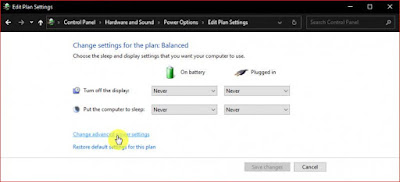
3. Click on the option Change advanced power settings
Click on the option Change advanced power settings
4. Open the Hard disk menu, then you will find settings to set how long the hard disk will turn off after a few minutes without read / write (idle) activity. You can set when the device is connected (Plugged in) or not connected to an electric current (On battery). Click OK to save the settings
settings to set how long the hard disk will turn off
5. Done

When the activity on the hard disk drive stops, there will be a delay of several seconds before the disk rotation on the hard disk drive will move again. However, you should also note that this feature will not work on Solid State Drives (SSD) or Non-Volatile Memory Express (NVMe).

That's an easy way to turn off the Hard Disk Drive when Idle in Windows 10. Hopefully this simple information can help you.
Read more...

Tips for Cleaning LED Screens on TVs and Monitors

Cleaning the LED screen on a TV or monitor can be done in various ways. However, the most important thing is that when we clean the LED screen, we use materials that can actually damage our LED screen. So, what kind of materials can and cannot be used? The materials that can be used to clean the LED TV / Monitor screen are clean cloth, soft, dry, with a type of microfiber cloth or the like. Meanwhile, what we should not use are rough and dirty, even wet cloths, tissue paper, window cleaners, paint thinner, gasoline and other chemicals.

A dirty LED screen, be it on a television or computer monitor, is usually caused by adhering dust, water splashes, dirt from cigarette smoke and so on. If we don't clean it immediately, then the dirt will move and it will be more difficult to clean. In addition, the dirt will give the impression of being neglected.
Tips for Cleaning LED Screens on TVs and Monitors
Here are some ways to clean the LED screen either on a TV or on a computer monitor that we can recommend for you to do.

The first step that we highly recommend when you are going to clean the LED screen is to make sure that our TV/Monitor is off and not connected to electricity. In other words, you have to unplug the power cord from the wall outlet. This step aims to avoid the possibility of a short circuit when we clean the tv or monitor screen if we clean it using water or other liquids. Especially for those of you who are afraid of electric shock, this step is very helpful. Not only that, the main goal is to clean the screen, it will not damage the pixels of the TV or monitor screen. Because, if you leave it on, it's likely that the pixels of the TV will be damaged. In addition, in this way it cools the television that is always on, so that at the same time it can save electricity.

How to Clean TV and Monitor LED Screens

The next step is, when the TV/monitor machine is cold you can start cleaning it. But first, prepare the materials or tools, such as the cloth mentioned above, which is a soft and dry cloth.

The reason is, the cloth is used to clean the dusty LED screen. So, if you use a rough cloth, then the surface of the screen will be scratched. The safest way to clean the LED screen is to first wipe the screen slowly or gently all over the screen using a dry microfiber cloth. Do not let it clean by pressing too hard, because it will also damage the screen.
Cleaning LED Screens on TVs and Monitors
And if there is still dirt stuck to it, then you can use Screen Cleaner (cleaning liquid). But never spray the liquid directly onto the screen, but just onto the cloth. For stubborn dirt or difficult to remove even after cleaning, you can wipe it by pressing. However, the pressure when cleaning the LED screen is a little hard, not too hard, with the help of cleaning fluid. The cleaning fluid or Screen Cleaner, although it can be used, should not be used too often, it should be used as needed. The reason is, if you clean the LED television screen or monitor too often using chemical liquids, then of course it can damage the pixels or the surface of the screen.

Cleaning the LED TV Screen and Monitors with Vinegar and Water

Apart from this chemical screen cleaner, another liquid that can be used to clean a TV screen or LED type monitor is vinegar mixed with plain water.

Who would have thought that vinegar, which is beneficial for food and health, can also be useful for cleaning dirty LED screen. The method is very easy, namely mixing white vinegar with clean water in a bowl or other container. After mixing the two ingredients, don't spray directly onto the screen. Because it can damage the TV screen or monitor permanently. But it is enough to dip a soft cloth or microfiber end into the bowl that already has vinegar and plain water.
Cleaning the LED TV Screen and Monitors with Vinegar and Water
Cleaning the LED TV Screen and Monitors with Vinegar and Water
After that, gently wipe the cloth used to clean the LED screen. That way, stubborn dirt and dust can be immediately removed. However, there are several television products from other manufacturers that provide advice. You can use water, but it is recommended according to the instructions on your TV. Especially the water according to the recommended dose.

While the chemical-based Screen Cleaner is good for cleaning LED screens, there are some other chemicals that shouldn't be used. These materials include Ethyl Chloride, Acetone, Ethyl Alcohol and Ammonia. This is because these chemicals can permanently damage the screen. These liquids are generally used in nail polish remover, paint thinner or paint solvent, and windex. In addition, soap, gasoline and scouring powder should not be used to clean the LED screen.

Meanwhile, cloth materials that are prohibited for cleaning TV or monitor screens are non-ultrasoft materials or materials that are categorized as rough. Examples are towels, tissue paper, toilet paper and other materials with a rough texture. If you use this material, it will release an anti-glare layer on the surface of the screen, and it can also cause permanent damage.

If you've finished cleaning the LED screen, then let it dry completely, before turning your television or monitor back on.

Here are a few tips that we can provide for those of you who want to clean your own LED TV or monitor screen. Hope it can help you.
Read more...

How to Choose RAM (Random Access Memory) is Right for Desktop Computer / Laptops

RAM is one of the vital computer components. RAM (Random Access Memory) is a type of computer storage that can be accessed in a fixed time. However, RAM is a type of temporary data storage which is currently laptops computer or die, the data stored in RAM is lost or deleted. RAM itself has a shape one piece of PCB and has many components integrated circuit (IC) on both sides. RAM has a type and a slot that varies according to the type of motherboard your computer or laptop. As we know have some type of RAM as we know the type of DDR RAM (DDR1), DDR2, DDR3, DDR4 and DDR5.

Besides, the type of RAM for computers and laptops are also different. Where RAM for laptops known as SODIMM, while RAM for PC / Computer known as the DIMM. RAM is a vital component in a computer either desktop PC or Laptop / Notebook, without RAM your computer will not be able to operate.

Choose RAM (Random Access Memory) is Right for Desktop Computer  Laptops
Choose RAM (Random Access Memory) is Right for Desktop Computer  Laptops
Therefore, when you want to buy RAM to replace the old RAM you, either because of damaged or if you want to replace it with specs higher (Upgrade RAM), you have to know first the type of RAM in your computer and also specs motherboard of your computer, Do not until you either buy, for example, we have a slot motherboard DDR2 RAM type, because we wanted to RAM with higher specs we buy DDR3 RAM, what happened?? DDR3 RAM cannot be installed in slot DDR2 vice versa, so we bought it ... it's useless. In Choosing RAM or memory on computers and laptops or specifically for gaming purposes you should consider several things, are like the series, capacity, brand and so forth. So that later you are not the wrong choice because if you choose the wrong course will spend money and wasted.

Before buying RAM or memory on your laptop, pc or assemble computer gaming then you should note. Here we will give you tips on how to choose the best RAM memory is correct for the desktop PC / Laptop, among others:
  • Select RAM memory in accordance with the specifications of your PC motherboard. If your PC motherboard supports dual channel, then choose double the amount of RAM that has exactly the same with Speck. Computers that have the dual channel RAM system have a much better performance. For example, 2 pieces 4Giga total capacity RAM with the same specs better than to just buy one piece of RAM capacity of 4 GB.
  • Choose the brand of RAM which has a good reputation in service sales. RAM brand itself there are so many, bleak Avexiar, Corsair, Hynix, Kingmax, Kingston, Samsung, Team Dark, V-Gen, Visipro, etc. We recommend looking for a brand of RAM that is already well known and widely sold. You can find information on the best RAM vendors at their official website. Do not choose a strange memory chip and RAM is not clear.
  • Do not choose the RAM memory that is not in the packaging. Although labeled celebrated the memory in the packaging tray or not it has a high level of damage, plus the risk of corrupted data is high due to faulty chip that would risk making a nuisance on the desktop PC.
  • If you are using a computer for a long time, make sure you select the memory RAM is already equipped with a heat spreader. Although the price is much more expensive than RAM memory in general. But RAM it has the performance and stability are very good. So it will be able to maintain the stability of a desktop computer PC / Laptop well.
  • Select memory (RAM) with low latency figures.
  • Choose the same memory slot with your motherboard model. Because, if not the same, the memory RAM cannot be used.
  • Do not forget to note the maximum capacity of RAM memory size of your PC desktop.
  • If you intend to add or upgrade the amount of RAM, then adjust the specifications and frequency of RAM.

Good information about tips on how to choose the best RAM memory for Computers Desktop PC and Notebook / Laptops can be useful and could be a reference you choose the best memory and precise. Hopefully helpful, and thank you.
Read more...

Accessories Support Required For Laptop

Laptop is a device sensitive enough. Using portable devices such as laptop computers must be equipped with some essential accessories and obligatory. There are a few accessories that must be used to make use of your laptop is much easier to use, more secure, and more efficient. Some of these accessories can make your laptop protected. Accessories what we mean? Check out more below:


Scratch-resistant Screen For Laptop (Screen Protector)

Scratch-resistant Screen For Laptop (Screen Protector)
Not just any smartphone, Laptop also has its own anti-scratch or commonly called the Screen Protector. This screen protector is one of the accessories required for laptop users. Because, the laptop screen is also included sensitive devices. Given this, the Laptop Screen Protector you can avoid scratches or dirt from your hands while rubbing your laptop screen. So you do not have to worry about your laptop screen when you clean it.

Keyboard Protector

Keyboard Protector
Keyboard Protector
For you who like to smoke or eat while working with a computer or laptop, these accessories are suitable for you. This can protect your laptop from dust, leftover food, and cigarette ash. These impurities can make your keyboard quickly broken. So the keyboard response may be slowed or even function. Keyboard protector is also waterproof, so if you drop water on the keyboard then it will not directly penetrate into your laptop. So, these accessories are required to use.

Cooling Pad

Cooling Pad
Cooling Pad
It's no secret that a laptop can easily heat. So you have to use accessories to keep the temperature Laptop to avoid overheating, these accessories are Cooling Pad. These accessories are very useful for those who are active in using the laptop for work. Given this cooling pad, you can linger - long front of the laptop and the temperature on your laptop is maintained. Cooling Pad is a fan placed at the bottom of the laptop. In the use of cooling pad should not be too excessive, just Cooling Pad Use this when you're overheated laptop. Because, laptops over heat will certainly be easily damaged and slower.

Bags for Laptops

Bags for Laptops
Bags for Laptops
For this one is a must-have. Without your Laptop Bag will be troubles in bringing your laptop anywhere. They can vary significantly in appearance and design to match your personal preferences. Usually, this bag has been included at the time of purchase Laptop. However, a nice bag you use if you travel a lot is laptop bag backpack models. In a laptop bag is supplied special parts for charger, laptop and other accessories. And of course, everything is designed to be resistant to shocks and collisions, so keep your laptop safe.
Read more...

Caring for Laptop / Notebook

Laptop or Notebook seems to have been not a luxury anymore, now widely available in the market ranging low end to high end. Many people who already have it, either as part of a lifestyle, to business, to do schoolwork or college. Looks like the PC will start displaced by the presence Laptop / Notebook. Although PC is more powerful, but the laptop / notebook that can be taken anywhere to make Laptop / Notebook favorite choice.Although Laptop / Notebook now not a luxury anymore, but we definitely still want a Laptop that we have kept nice and durable.
Here we are some tips that can be applied to Laptop / Notebook longevity and remain durable.
Caring for Laptop / Notebook

Use the special bag Laptop / Notebook

We recommend using a special bag in design for Laptop / Notebook. Do not use any bag, use a special laptop bag that has a special bearing for Laptop / Notebook. Perhaps bag for this price is a little bit expensive, but worth its function to protect the Laptop / Notebook us.

Use stabilizer when using a Laptop / Notebook while in charging

By the time you work with a Laptop / Notebook but the battery is weak, so that you are forced to use while in the charger, you can add stabilizer. Stabilizer function to keep the current into the Laptop / Notebook levels steady, so your laptop safe from currents up and down. And you remain comfortable working with Laptop / Notebook.

Do not get used to Eat and Drink near Laptop / Notebook

Avoid eating or drinking near Laptop / Notebook. Liquids or foods could accidentally spilled and could hit the keyboard and into the component. If it is damaged components inside, then you must pay to fix it, and maybe it is not cheap.

Be careful when trying to download Software

Try to use the existing software in the package Laptop / Notebook, to avoid damaging virus. Download software from the Internet, if not careful and without adequate antivirus support and updates with a good pitch you should avoid.

Do Laid Laptop / Notebook on the floor

Scattered dust on the floor can damage the Laptop / Notebook. And trampled risk would be very large.

Clean Laptop / Notebook regularly

This is often not done by the owner of Laptop / Notebook. Leaving the Laptop / Notebook in a dirty tantamount to shorten age. Try to regularly clean the screen and keyboard of course.

Similarly, care tips Laptop / Notebook of us, hopefully the above tips to make your Laptop / Notebook you are always in the best condition when you use.
Read more...

How to Manually Update Windows 8.1 Update 1


Windows 8.1 Update
Windows 8.1 Update


Many people are waiting for the update 1 of Windows 8.1, this is because the update brings several new features such as the ability to pin applications to the Metro, the power button on the Start Screen, Start Screen that is more friendly mouse, and other features. Update 1 also offers several other important updates. And finally, dated 8 April 2014 has been set by Microsoft to issue the first update of Windows 8.1.

Microsoft recommends that we do live updates through Windows Update. However, do the update feature through which one can take a long time, even though we use a fast internet connection. How wonderful if we could do a Windows file download 8.1 Update 1 using a download manager, so we can use the full bandwidth of our internet.
Windows 8.1 Update 1

To perform the update manually Windows 8.1, you are required to install all critical updates first available on the Windows Update feature. For that, you have to go to settings in a way to swipe from the right side of the screen or move the mouse to the top right of the screen, click on Settings, then go to Change PC Settings. Go to Update and Recovery and select Windows Update. Do a search update using the Check Now (of course with your internet connection).

Windows 8.1 Update 1 has the code KB 2919355. If you have not found on the list of updates, you have to install all critical updates and restart . When all was done, the program will appear in the Windows 8.1 update KB number is 2919355 . To note , the magnitude of the update is over 690MB. If you want to perform the update via Windows update, check and press the Install button.

To perform the installation manually, you should download the update file :
  •     KB 2919355 for Windows 8.1 64 -bit
  •     KB 2919355 for Windows 8.1 32 bit
  •     KB 2919355 for Windows 8.1 RT
Congratulations do you update Windows 8.1. And remember, this update can only be done on Windows 8.1 only. If your computer is still running Windows 8, Windows did an update to 8.1 prior to entry into the Windows Store.

Similarly, a few tips to make your Windows 8.1 Update 1 manually. Hopefully Helpful.
Read more...

Our Laptop Power Supply in Order to Live Longer

As with all computer equipment necessary to care for a laptop power supply to maximize the life of the product. After all, his power of your computer and without it you get about 2 hours of usage before the laptop battery runs out. Unless you want to keep buying extra laptop power supply, it is best to take a little care and ensure that it lasts at least as long as your computer. Why bother and a waste of money if we can make our laptop power supply live longer.

Is the Power Supply Laptop?

Power supply is the main resource of a laptop, no laptop power supply will not be able to operate.
Make Our Laptop Power Supply in Order to Live Longer
The power supply or power adapter laptop performs two main functions. This force the computer from the AC outlet and keep the laptop battery is charged for those times when you can not plug in. In most cases, laptop power adapter transformer consists of a rectangle with two wires that run from opposite ends with one another and connected to the outlet for your laptop.

Caring for Laptop Power Supplies

Does not take much effort to care for a laptop power supply because there are not many components. There are some common mistakes computer users do that can reduce the life of laptop AC adapters. Including; users often bend the cable, allowing the transformer overheating, and exposure to water and voltage surges.
Choosing a Compatible Power Adapter for Our Laptop
Using Compatible Power Adapter for Our Laptop
Bend the cable in a laptop power supply can cause the wires to break. At the very least, broken wires inside the cable will interfere with the power adapter and its worst consequences in the event of a short-circuit that can damage your laptop. When using a power supply, make sure that the power supply cable to the laptop that is not pinned on the wall, your computer, or lie under any furniture. I also saw many people wrap the cable around the transformer when traveling with their laptops. Be careful about how you wind the cable tightly to avoid damage.

The transformer overheated laptop AC adapter can cause damage to both the transformer and the circuits inside the computer that is responsible for charging the laptop battery. Transformer from the power adapter laptop cause heat generation due to the change from the electrical outlet is needed for the computer. While designed to tolerate the heat, it is wise to let it cool at least every day so be sure to turn off the laptop at night. In addition, place the transformer in a position to expose to the air flow like in the corner of your desk or as a surface. Air flow to help dissipate the heat. Put it on the carpet will prevent some of the heat from dissipating potentially causing it to overheat.

We all know that electricity and water are two very dangerous to touch each other. For that, try not to use your laptop in a place prone to water. This not only applies to laptops, this applies to all devices that use electricity.

As far as voltage problems go, there are several ways to protect your laptop power supply and your computer. One way is to always use a surge suppressor to absorb the voltage spikes. There is a small surge suppressor that can easily fit into your computer when you travel. The second way involves the purchase of laptop power adapter is universal if you need to replace the original. If the laptop power supply voltage is too low then the computer can draw from the laptop battery to achieve sufficient power. If the voltage is too high then it could potentially damage the battery and computer.
Read more...

Practical Tips Keeping Notebook or laptop to keep it looking clean and optimum performance

Laptop Care
Laptop Care
How to keep your favorite notebook has optimum performance and always look clean?
Following these simple tips in avoiding your Notebook or Laptop from damage. This might be a little useful in the quality of the performance of your laptop.
  • Do not put the laptop on a surface that is too soft.
    If you put the laptop in a very soft couch, a laptop should look a little lost in that place. It would be very dangerous. Because, discharge heat from the laptop will be retarded and make your laptop overheating. Thus, the risk of burning of the components inside your laptop is very large.
  • Do not get used to put the laptop on the floor.
    When your laptop on the floor, stepped on the foot of the risk of a laptop, your children or your pets will be huge. Besides the laptop is placed on the floor will easily soiled by the dust.
  • Keep your laptop from items that contain water.
    Why?. Because electronic items like laptops are very sensitive to water.
  • If you carry your laptop in your bag, be careful.
    Use a special bag that was used to carry laptops. Do not use any laptop bag to avoid scraped from other items in the bag.
  • Try using stabilizers
    If you're working on a laptop using the power (without batteries), then you should use a stabilizer to prevent unstable voltage to your laptop.
  • Do not carelessly download free software from the internet.
    Use the software package built from the laptop you purchased. If you carelessly use the software from the Internet, the risk of virus entry into your laptop has been great. But, if you still want to use the downloaded software from the internet, make sure that the software is indeed safe for your device. One of them with a complete Laptop with a virus that you believe may ward off virus attacks and the like.

If cared for properly, the performance of your notebook can remain good even been used for many years. If we keep laptops running perfectly after all these years, we also will find it useful.
Read more...

PROCESSOR UPGRADE

processor
Processor Upgrade


Upgrading the processor is to replace the processor with a new processor and that has the ability and higher speeds than those used previously.

Here are some things to consider before buying a new processor to upgrade

  • Socket processors will we buy must be in accordance with existing processor socket on the motherboard. For example for the AMD socket A (S462) we can only upgrade the processor has the same socket but has a much faster pace.
  • If you upgrade the processor with a different socket to the processor socket on the motherboard are the most appropriate way is that you also have to replace the motherboard.
  • The motherboard supports the bus speed of the processor (processor speed = bus clock x)
  • Clock speed of the processor the sooner the better
  • Support of the processor cache memory (L1 cache and L2 cache)
  • Upgrade your processor speed is the highest processor speed at this point if you do not want to be too quick to replace the processor again.

Similarly, a few tips from us, hopefully can help you before you upgrade your processor.
Read more...

Caring not Happen To Processor Overheating (Thermal Overload)

The processor is the main brain of the computer. Processor on computers often have problems that should not be taken lightly.One cause of this problem is due to overheating (overheating), so it can make the computer restarts frequently and may die suddenly.So take care to keep the processor temperature, to ensure cooling processor (headsink) and the fan works well.

This - matters related to the processor and need to be considered include :

    • When installing / before installing the processor, make sure the top of your processor thermal paste has been smeared or Thermal Grease, the gel material which serves to remove heat from the processor to headsink. Generally thermal paste available 2 colors, namely white and silver. We recommend using a silver-colored, silver-colored because the quality is better than the white.
    • Select the box / casing which has a smooth air circulation path, so the hardware components inside, including the processor, not heat faster.
    • Tidy up the cables, especially cables ATA type larger and wider than the SATA cable, for air circulation inside the casing more smoothly.
    • For personal computers, maybe you can open the casing cover, for the smooth circulation of air inside the casing is more effective.But maybe not according to the aesthetic value and not unsightly.

    Caring not Happen To Processor Overheating (Thermal Overload)
    Caring not Happen To Processor Overheating
    (Thermal Overload)

    Here are some tips on caring for our processor :

    1. Disconnect all power supply or the electrical contacts from your computer and set aside some time for headsink cooler. Then open headsink and fan from the processor.
    2. Separate fan and headsink of processors, then clean the fan with a damp cloth, and clean the crack headsink of dust, or it could be washed with a brush or a soft brush. After cleaning, do not forget to drain headsink and do not there is residual water in the gap headsink, it is very important to avoid short circuit electrical current
    3. Once you are sure is clean, replace the fan with headsink, and attach them to the processor as in the past.

    replace the fan with headsink
    Replace the Fan With Headsink

    It is recommended you do the treatment 3 months, to a computer in an air-conditioned room. And for computers that are in an environment that a lot of dust, treatment can be done more often, maybe every once a month.

    So a few tips from us in the care of our computer, especially on the processor. Hopefully writing this little useful for you.
    Read more...